Learning Objectives
After completing this lesson, you’ll be able to:
- Describe workflows to use an FME Flow Automations writer.
- Add an automations writer to a workspace.
- Run a workspace with an automations writer in an automation.
- Send an email using output information from an automations writer.
In this lesson, you will:
- Optional: Watch a demonstration video (if you have not attended the live training).
- Scroll down to read the activity instructions below and follow the steps in your lab.
- Complete the quiz at the end of this lesson.
- Click 'Next' to mark the lesson complete.
Learning Objectives
After completing this lesson, you’ll be able to:
- Describe workflows to use an FME Flow Automations writer.
- Add an automations writer to a workspace.
- Run a workspace with an automations writer in an automation.
- Send an email using output information from an automations writer.
In this lesson, you will:
- Optional: Watch a demonstration video (if you have not attended the live training).
- Scroll down to read the activity instructions below and follow the steps in your lab.
- Complete the quiz at the end of this lesson.
- Click 'Next' to mark the lesson complete.
Resources
If you're taking a live Safe Software-hosted training course or using an on-demand lab for this course, we've already imported the content for this lesson into your FME Flow.
If you're completing this lesson with your own FME Flow, you must import the starting project with the content into your FME Flow.
See FME Flow Authoring: Instructions to Import the Starting Project for directions to import the project to your own FME Flow.
Output Attributes
Each FME Flow Automations trigger and action has two output ports: success and failure. When FME Flow sends messages through these ports to downstream actions, it includes key-value pairs that extract information from the JSON message. Each trigger and action type has pre-defined Event Attributes and Custom Attributes that the automation author may create. You may reference these Output Attributes in downstream actions within the automation.
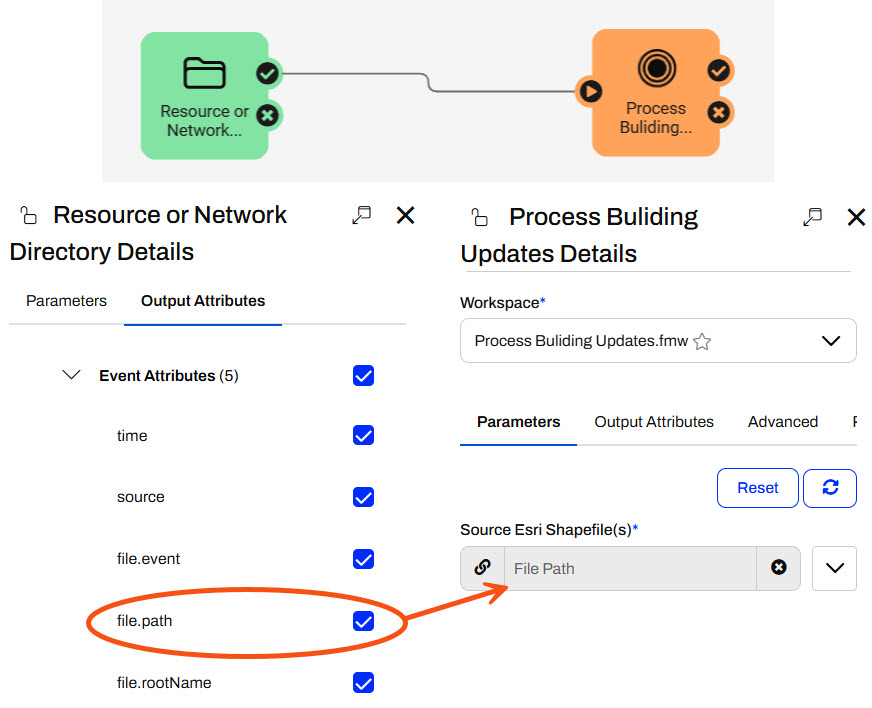
For example, you may reference the file.path attribute from the Resource or Network Directory trigger in a source file parameter in a downstream Run a Workspace action.

For more information on Output Attributes and Automation Parameters, please review the Respond to Real-time Events course.
FME Flow Automations Writer
While Output Attributes allow you to pass some basic information about each trigger or action downstream, the Run a Workspace action only sends job success or failure information. The Run a Workspace Event Attributes do not include any information about the data the workspace processes. Custom Attributes also don't contain options to link to that information. However, the FME Flow Automations writer helps overcome this problem and extracts information from within a workspace into an Automation.
Like any other writer, you add the FME Flow Automations writer to your workspace.
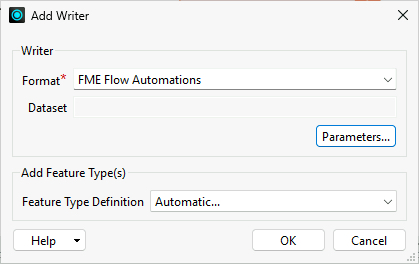
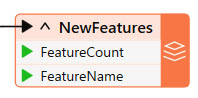
When you add the workspace to a Run a Workspace action in an Automation, an additional output port is created for the automation writer.
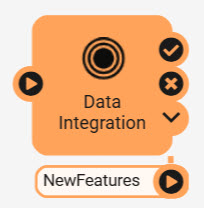
FME Flow outputs a JSON object from the automations writer port for each feature that routes to the writer within the workspace. FME Flow creates one output port for each FME Flow Automations feature type in the workspace.
Each feature contains values for the attributes added to the action's Output Attributes.
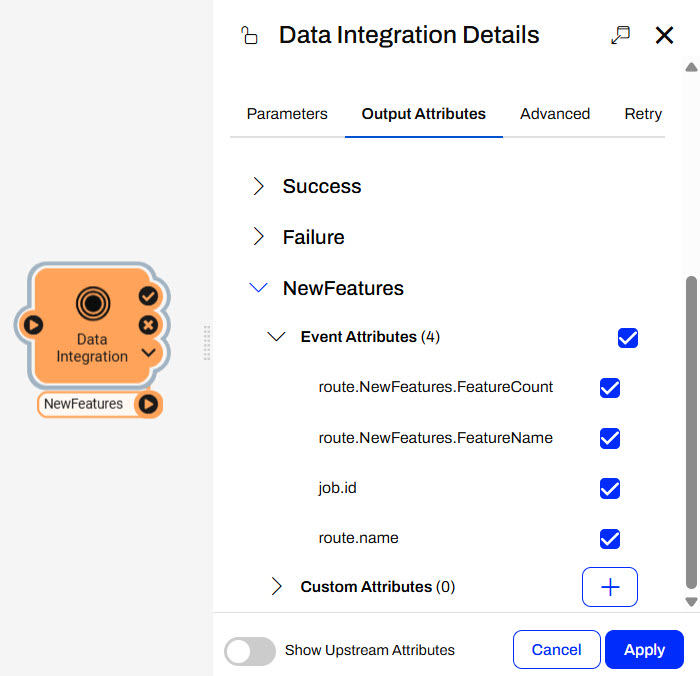
To use these attribute values in the automation, you link to the automation writer attributes in downstream actions. By doing so, you can control the flow of your automation based on the data you process in your workspaces.
The automations writer offers flexibility in which information you pass from a workspace into the automation. You can create as many output ports as required to allow advanced filtering or pass multiple messages to numerous downstream actions.
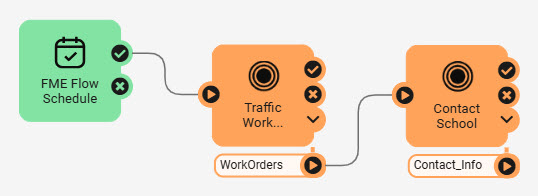
For example, the WorkOrders port in this workspace outputs features for work orders in school zones that have not yet been processed. If twenty features are passed through the port, the Contact School workspace will run twenty times to process each work order.
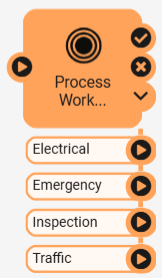
In this example, the workspace processes work orders and filters them by type. For each run of the workspace action, multiple features may be sent through each port, which will likely run different downstream workspaces based on their type.
Exercise

Jennifer previously created an Incoming Building Footprints automation that processes shapefiles of building footprint updates, writes the updates to a geodatabase, and sends an email with the workspace's translation status. She will build on that scenario and send an email summarizing the updates. To get the summary information about the updates from the workspace to the Email external action in her automation, Jennifer must use an FME Flow Automations writer.
In this exercise, you will:
- Configure an FME Flow Automations writer for Jennifer's workspace.
- Add the automations writer workspace to Jennifer's automation.
- Send an email summarizing the building updates processed by the automation.
1) Open Starting Workspace
- Open the starting workspace ( C:\FMEData\Workspaces\AutomateWorkflowsWithFMEFlow\use-the-automations-writer.fmw) in FME Workbench.
- The workspace simply reads a shapefile of building updates and writes the updates to a SpatiaLite database.
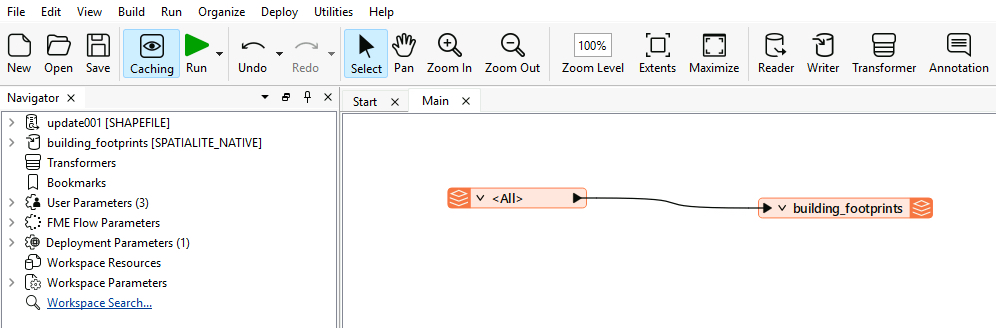
2) Create Summary Information
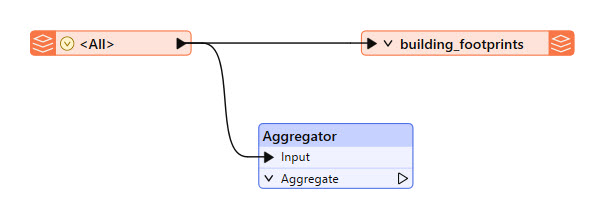
- Add an Aggregator transformer to the shapefile reader feature type.
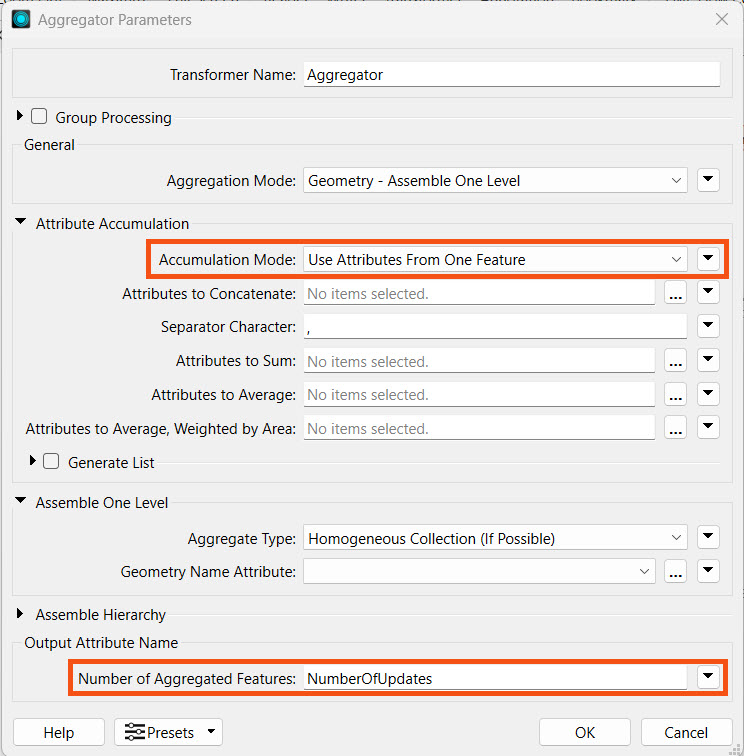
- Double-click the Aggregator to open its parameters. Make these two changes:
- Accumulation Mode: Use Attributes from One Feature
- Number of Aggregated Features: NumberOfUpdates
- Click OK to close the Aggregator Parameters.
3) Add an Automations Writer
- Click Writer on the top toolbar to open the Add Writer dialogue.
- For Format, select FME Flow Automations.
- Ensure the Feature Type Definition is set to Automatic...
- Click OK.
Next, FME will prompt you to configure the Feature Type.
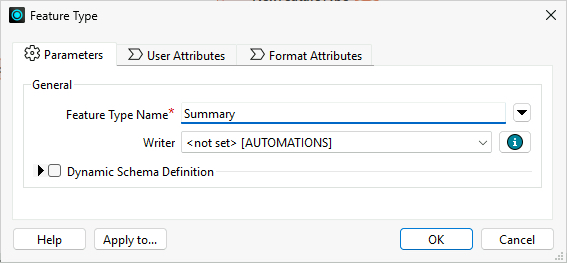
- Set the Feature Type Name to Summary.
- Click OK.
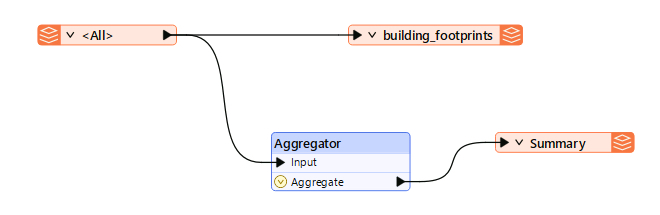
- FME adds the Summary writer feature type to the canvas. Connect it to the Aggregator output port.
4) Clean-up Attributes
- After you connect the writer feature type to the Aggregator, click the down arrow next to Summary.
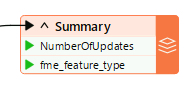
- You'll notice that all the attributes from the shapefile are included in the writer. You don't need all the information in the automation, so you'll need to remove some attributes.
- Double-click the Summary feature type, then go to the User Attributes tab.
- Change the Schema Definition to Manual.
- Remove all attributes except NumberOfUpdates.
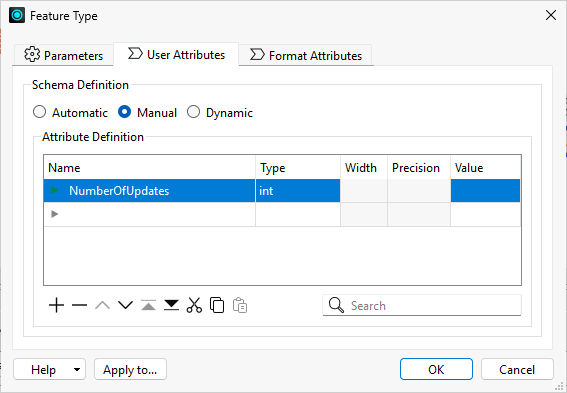
- Click OK, then check the Summary attribute drop-down. NumberOfUpdates and fme_feature_type should be the only attributes.
5) Publish to FME Flow
- Click Publish in the FME Flow Connection toolbar.

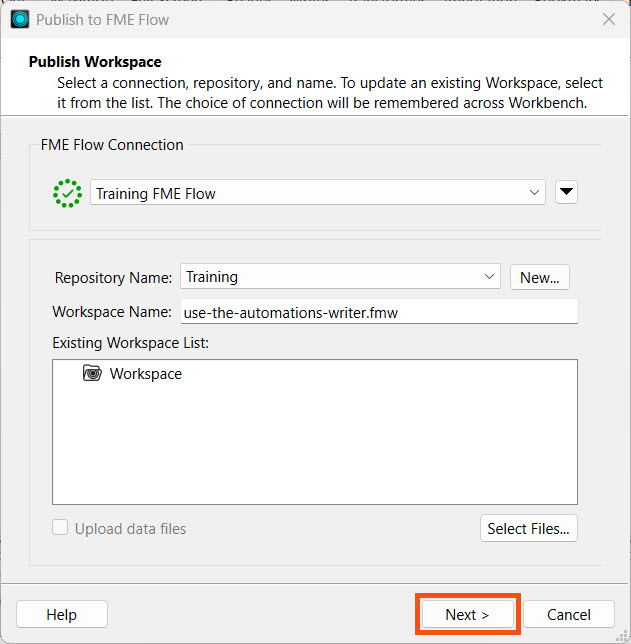
- Select the Training repository.
- If it doesn't exist, click New... and add a new repository named Training.
- Leave the Workspace Name as use-the-automations-writer.fmw.
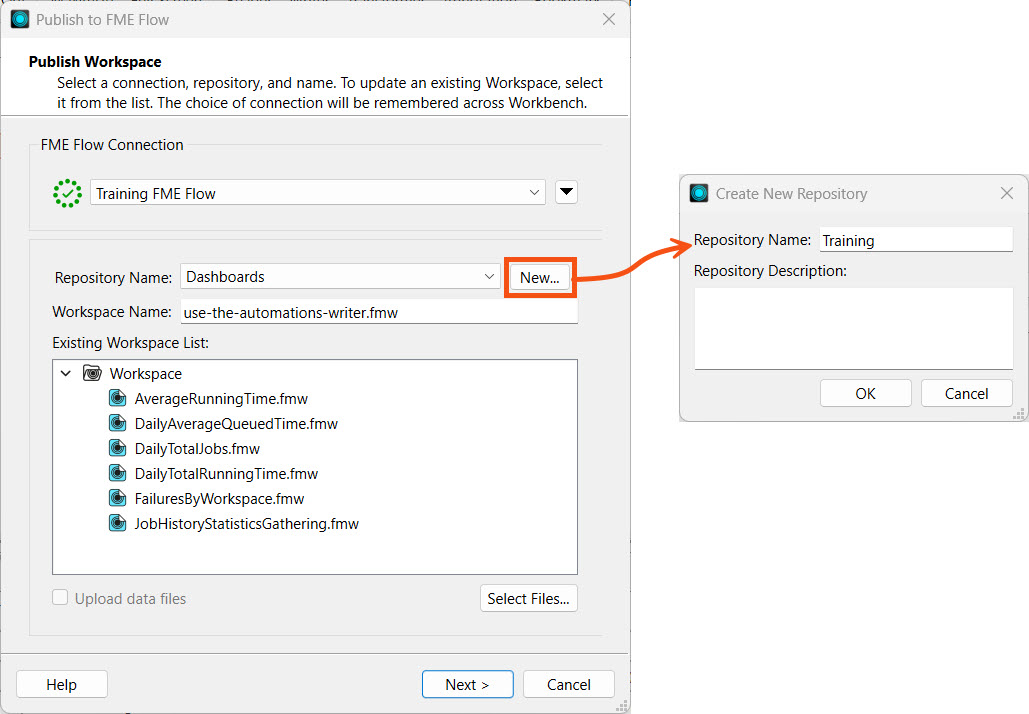
- You don't need to upload any data files, as the workspace's source data will be sent by the automation trigger. Click Next.
- Register the workspace with the Job Submitter service and click Publish.
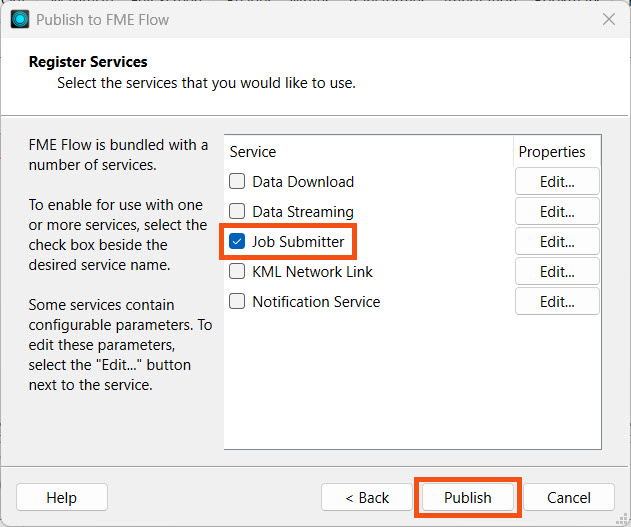
For more information on publishing workspaces to FME Flow and FME Flow's services, see the Deploy Workspaces on FME Flow course.
6) Edit Automation
- Navigate to FME Flow Automations and open the Automations-Writer-Template automation.
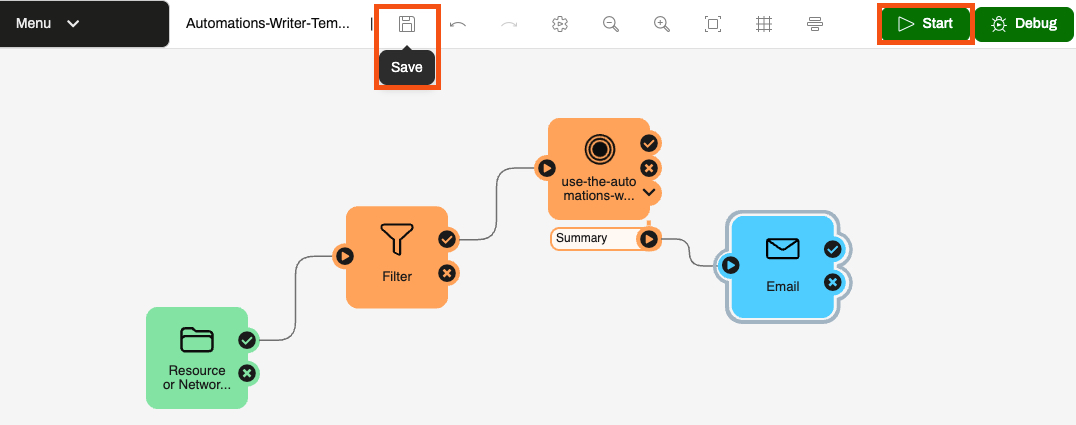
- Jennifer has already built a Resource or Network Directory trigger that monitors the BuildingUpdates folder on FME Flow and added a Filter action to filter for shapefiles (.shp). The Action and External Action are ready for you to configure.

If you still have your Incoming Building Footprints Automation from Respond to Real-time Events, you may continue editing it. Otherwise, you can import the Automations-Writer-Template Automation with the starting project.
7) Add Run a Workspace Action
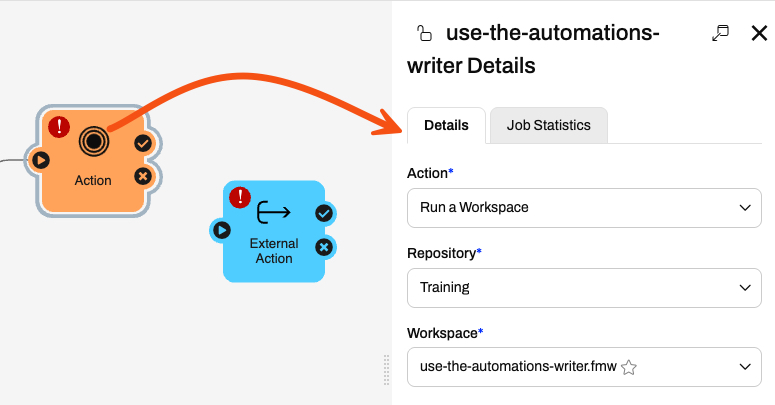
- Click the Action icon to open its details.
- Set the action to run the use-the-automations-writer.fmw workspace you published to the Training repository.
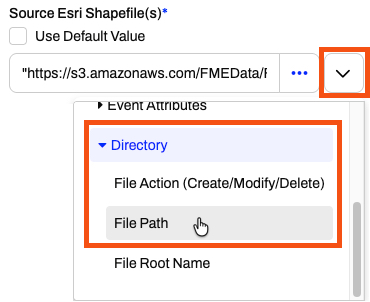
- For the Source Esri Shapefile(s) parameter, deselect Use Default Value, then select the File Path attribute in the Directory expandable section using the drop-down menu.
- Leave the other parameters at their default values and click Apply to close the pane.
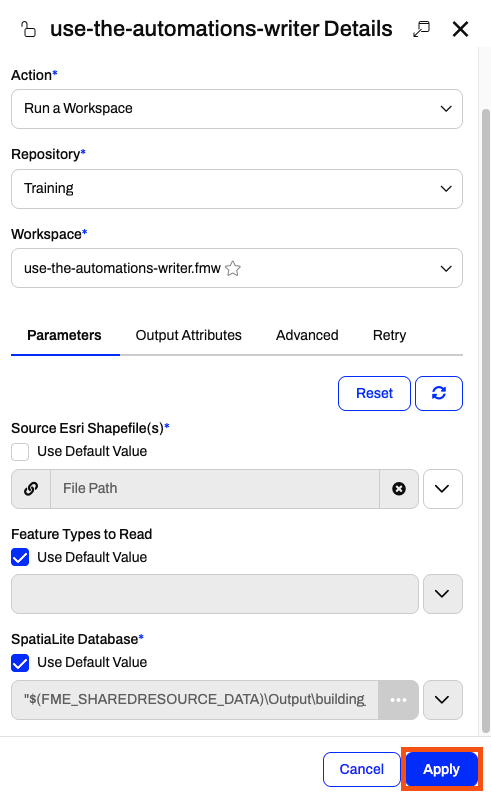
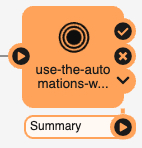
The Run a Workspace action updates and adds a port for the UpdatesSummary automations writer in the workspace.
8) Add an Email External Action
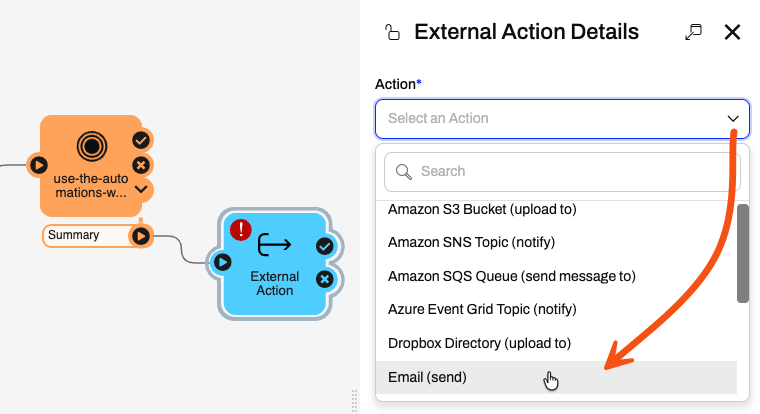
- Connect the External Action to the Summary port.
- Open the External Action Details.
- Select the Email (send) action.
You will configure the action to use a Gmail account for the SMTP credentials.
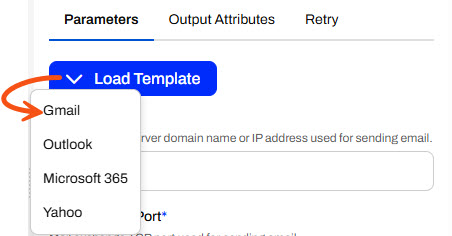
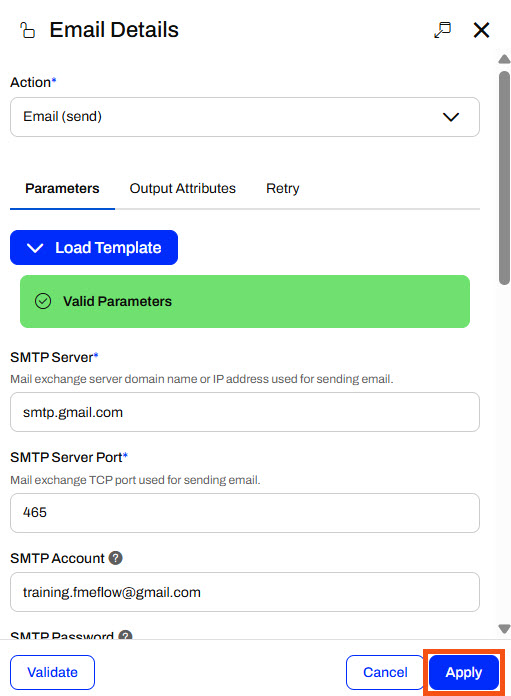
- Select Gmail from the Load Template option.
- This pre-populates some of the SMTP parameters specific to Gmail.
- Enter these values for the SMTP parameters:
- SMTP Account: training.fmeflow@gmail.com
- SMTP Password: wjdmzjdkujkzmplw
- Connection Security: SSL/TLS
This Gmail account password changes regularly. Please only use it for FME training purposes, or configure your SMTP account for the Email action.
- Enter your own email for the Email To parameter.
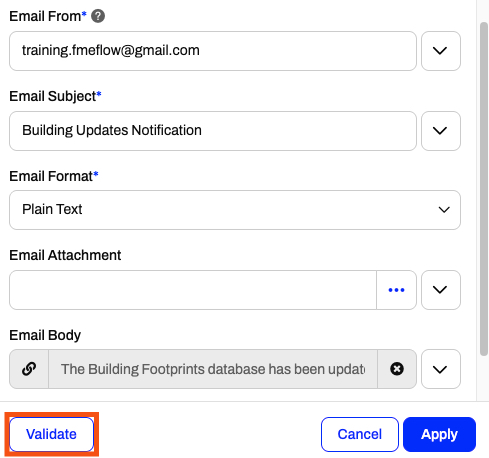
- Use training.fmeflow@gmail.com for the Email From parameter.
- For the Email Subject, type in Building Updates Notification.
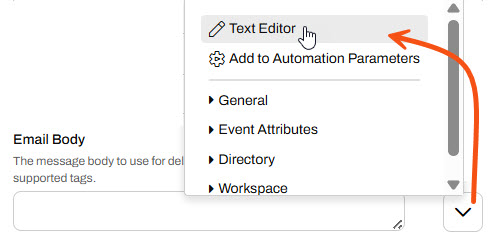
- For the Email Body, use the drop-down options to select the Text Editor.
- In the Text Editor, enter the following message:
The Building Footprints database has been updated! {route.Summary.NumberOfUpdates} records were updated.- To add the {route.Summary.NumberOfUpdates} parameter, expand the Workspace and Summary tabs and select NumberOfUpdates.
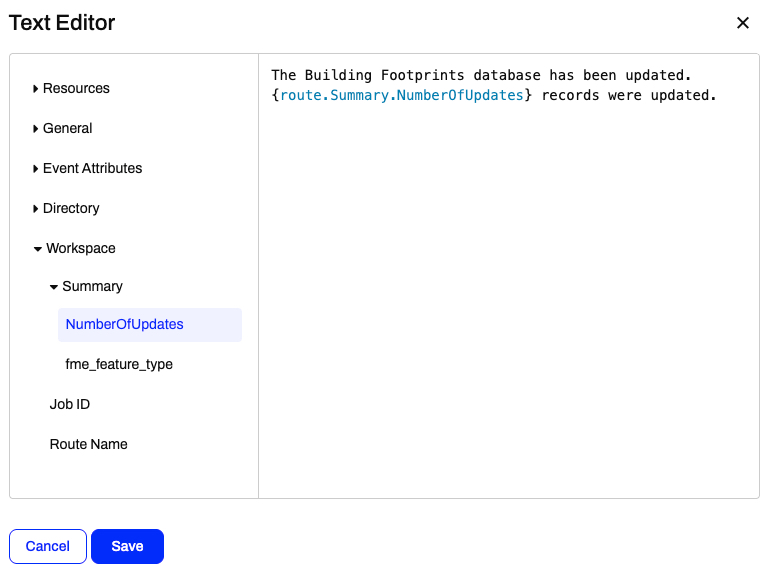
- Click Save to close the Text Editor.
- Once you enter all the required parameters, click Validate to ensure the SMTP email settings are valid.
- Once your parameters are valid, click Apply to close the Email action details.
9) Save and Start Automation
- Save the automation, then click Start to monitor the folder for file changes.
10) Upload Shapefile to Trigger Automation
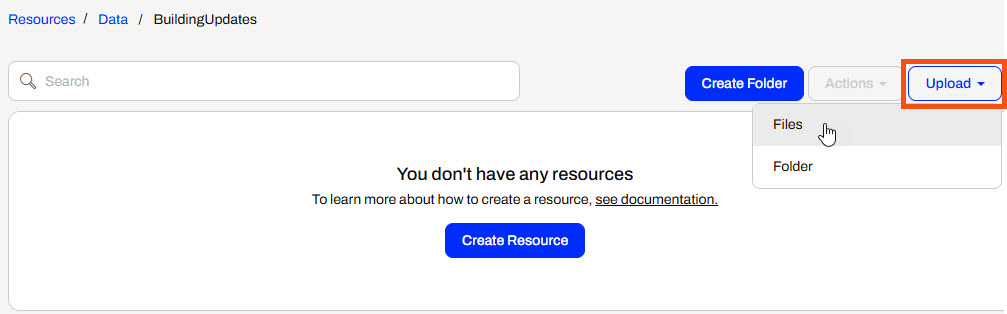
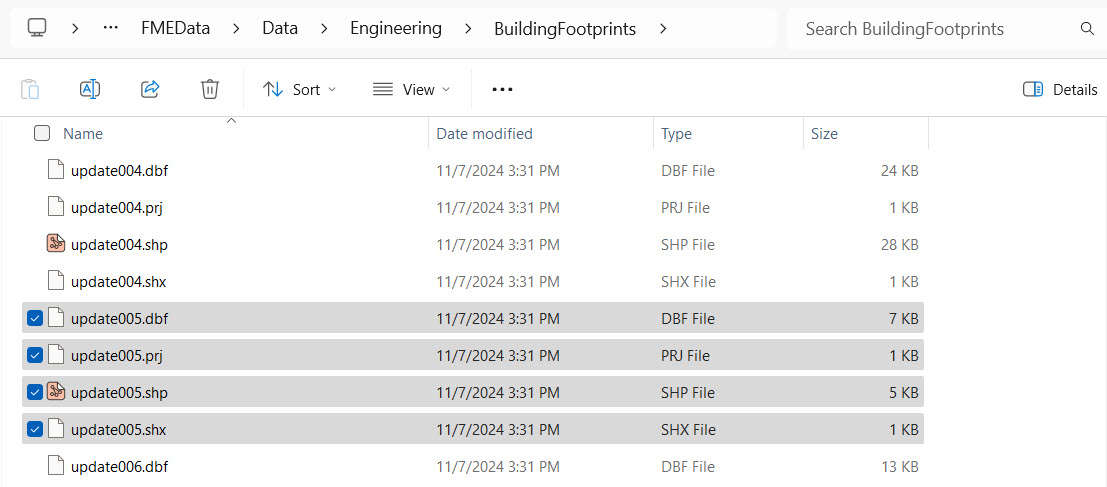
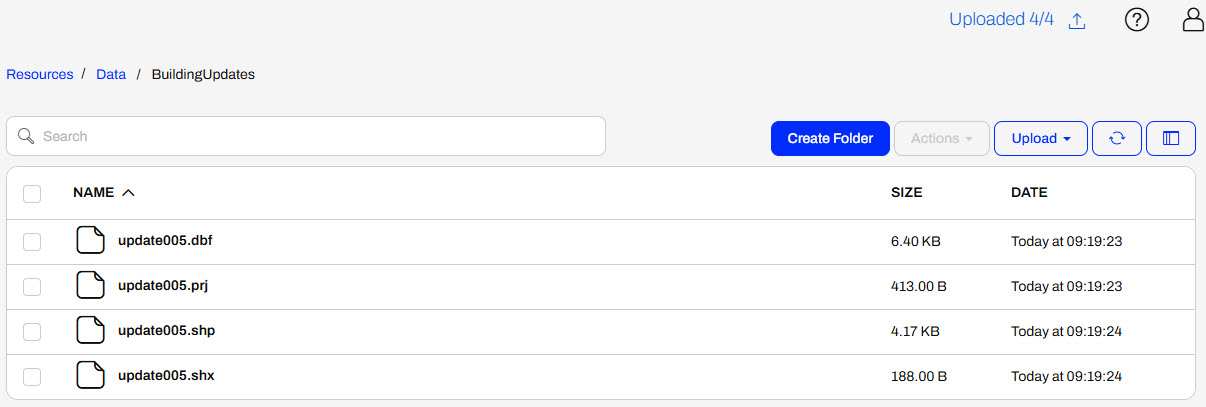
- With the automation running, navigate to Resources > Data > BuildingUpdates and upload all four files of a shapefile of updates (C:\FMEData\Data\Engineering\BuildingFootprints).
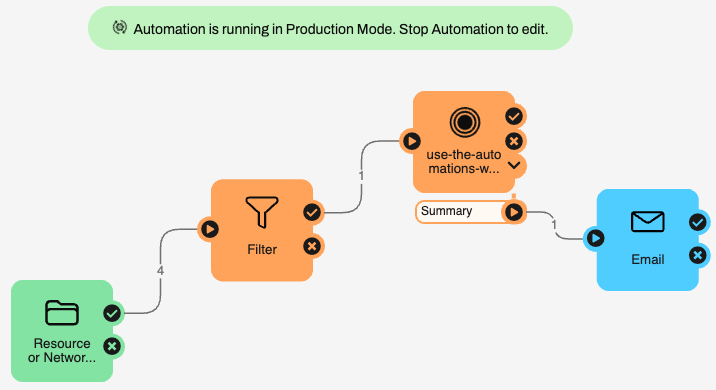
- After a moment, return to the automation and refresh it to see the event counts update to reflect the shapefile being processed.
- You should also receive an email with information on the number of updates added to the database from the shapefile.
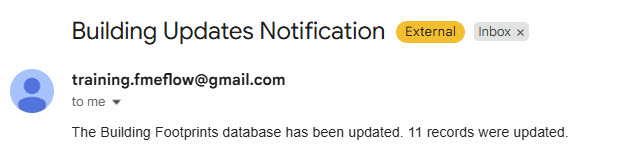
You've successfully completed Jennifer's automation to process shapefiles for building updates and update a database, using an FME Flow Automations writer to pass summary information about the number of updates from the workspace to send an email.
Resources
If you're taking a live Safe Software-hosted training course or using an on-demand lab for this course, we've already imported the content for this lesson into your FME Flow.
If you're completing this lesson with your own FME Flow, you must import the starting project with the content into your FME Flow.
See FME Flow Authoring: Instructions to Import the Starting Project for directions to import the project to your own FME Flow.
Output Attributes
Each FME Flow Automations trigger and action has two output ports: success and failure. When FME Flow sends messages through these ports to downstream actions, it includes key-value pairs that extract information from the JSON message. Each trigger and action type has pre-defined Event Attributes and Custom Attributes that the automation author may create. You may reference these Output Attributes in downstream actions within the automation.
For example, you may reference the file.path attribute from the Resource or Network Directory trigger in a source file parameter in a downstream Run a Workspace action.
For more information on Output Attributes and Automation Parameters, please review the Respond to Real-time Events course.
FME Flow Automations Writer
While Output Attributes allow you to pass some basic information about each trigger or action downstream, the Run a Workspace action only sends job success or failure information. The Run a Workspace Event Attributes do not include any information about the data the workspace processes. Custom Attributes also don't contain options to link to that information. However, the FME Flow Automations writer helps overcome this problem and extracts information from within a workspace into an Automation.
Like any other writer, you add the FME Flow Automations writer to your workspace.
When you add the workspace to a Run a Workspace action in an Automation, an additional output port is created for the automation writer.
FME Flow outputs a JSON object from the automations writer port for each feature that routes to the writer within the workspace. FME Flow creates one output port for each FME Flow Automations feature type in the workspace.
Each feature contains values for the attributes added to the action's Output Attributes.
To use these attribute values in the automation, you link to the automation writer attributes in downstream actions. By doing so, you can control the flow of your automation based on the data you process in your workspaces.
The automations writer offers flexibility in which information you pass from a workspace into the automation. You can create as many output ports as required to allow advanced filtering or pass multiple messages to numerous downstream actions.
For example, the WorkOrders port in this workspace outputs features for work orders in school zones that have not yet been processed. If twenty features are passed through the port, the Contact School workspace will run twenty times to process each work order.
In this example, the workspace processes work orders and filters them by type. For each run of the workspace action, multiple features may be sent through each port, which will likely run different downstream workspaces based on their type.
Exercise
Jennifer previously created an Incoming Building Footprints automation that processes shapefiles of building footprint updates, writes the updates to a geodatabase, and sends an email with the workspace's translation status. She will build on that scenario and send an email summarizing the updates. To get the summary information about the updates from the workspace to the Email external action in her automation, Jennifer must use an FME Flow Automations writer.
In this exercise, you will:
- Configure an FME Flow Automations writer for Jennifer's workspace.
- Add the automations writer workspace to Jennifer's automation.
- Send an email summarizing the building updates processed by the automation.
1) Open Starting Workspace
- Open the starting workspace ( C:\FMEData\Workspaces\AutomateWorkflowsWithFMEFlow\use-the-automations-writer.fmw) in FME Workbench.
- The workspace simply reads a shapefile of building updates and writes the updates to a SpatiaLite database.
2) Create Summary Information
- Add an Aggregator transformer to the shapefile reader feature type.
- Double-click the Aggregator to open its parameters. Make these two changes:
- Accumulation Mode: Use Attributes from One Feature
- Number of Aggregated Features: NumberOfUpdates
- Click OK to close the Aggregator Parameters.
3) Add an Automations Writer
- Click Writer on the top toolbar to open the Add Writer dialogue.
- For Format, select FME Flow Automations.
- Ensure the Feature Type Definition is set to Automatic...
- Click OK.
Next, FME will prompt you to configure the Feature Type.
- Set the Feature Type Name to Summary.
- Click OK.
- FME adds the Summary writer feature type to the canvas. Connect it to the Aggregator output port.
4) Clean-up Attributes
- After you connect the writer feature type to the Aggregator, click the down arrow next to Summary.
- You'll notice that all the attributes from the shapefile are included in the writer. You don't need all the information in the automation, so you'll need to remove some attributes.
- Double-click the Summary feature type, then go to the User Attributes tab.
- Change the Schema Definition to Manual.
- Remove all attributes except NumberOfUpdates.
- Click OK, then check the Summary attribute drop-down. NumberOfUpdates and fme_feature_type should be the only attributes.
5) Publish to FME Flow
- Click Publish in the FME Flow Connection toolbar.
- Select the Training repository.
- If it doesn't exist, click New... and add a new repository named Training.
- Leave the Workspace Name as use-the-automations-writer.fmw.
- You don't need to upload any data files, as the workspace's source data will be sent by the automation trigger. Click Next.
- Register the workspace with the Job Submitter service and click Publish.
For more information on publishing workspaces to FME Flow and FME Flow's services, see the Deploy Workspaces on FME Flow course.
6) Edit Automation
- Navigate to FME Flow Automations and open the Automations-Writer-Template automation.
- Jennifer has already built a Resource or Network Directory trigger that monitors the BuildingUpdates folder on FME Flow and added a Filter action to filter for shapefiles (.shp). The Action and External Action are ready for you to configure.
If you still have your Incoming Building Footprints Automation from Respond to Real-time Events, you may continue editing it. Otherwise, you can import the Automations-Writer-Template Automation with the starting project.
7) Add Run a Workspace Action
- Click the Action icon to open its details.
- Set the action to run the use-the-automations-writer.fmw workspace you published to the Training repository.
- For the Source Esri Shapefile(s) parameter, deselect Use Default Value, then select the File Path attribute in the Directory expandable section using the drop-down menu.
- Leave the other parameters at their default values and click Apply to close the pane.
The Run a Workspace action updates and adds a port for the UpdatesSummary automations writer in the workspace.
8) Add an Email External Action
- Connect the External Action to the Summary port.
- Open the External Action Details.
- Select the Email (send) action.
You will configure the action to use a Gmail account for the SMTP credentials.
- Select Gmail from the Load Template option.
- This pre-populates some of the SMTP parameters specific to Gmail.
- Enter these values for the SMTP parameters:
- SMTP Account: training.fmeflow@gmail.com
- SMTP Password: wjdmzjdkujkzmplw
- Connection Security: SSL/TLS
This Gmail account password changes regularly. Please only use it for FME training purposes, or configure your SMTP account for the Email action.
- Enter your own email for the Email To parameter.
- Use training.fmeflow@gmail.com for the Email From parameter.
- For the Email Subject, type in Building Updates Notification.
- For the Email Body, use the drop-down options to select the Text Editor.
- In the Text Editor, enter the following message:
The Building Footprints database has been updated! {route.Summary.NumberOfUpdates} records were updated.- To add the {route.Summary.NumberOfUpdates} parameter, expand the Workspace and Summary tabs and select NumberOfUpdates.
- Click Save to close the Text Editor.
- Once you enter all the required parameters, click Validate to ensure the SMTP email settings are valid.
- Once your parameters are valid, click Apply to close the Email action details.
9) Save and Start Automation
- Save the automation, then click Start to monitor the folder for file changes.
10) Upload Shapefile to Trigger Automation
- With the automation running, navigate to Resources > Data > BuildingUpdates and upload all four files of a shapefile of updates (C:\FMEData\Data\Engineering\BuildingFootprints).
- After a moment, return to the automation and refresh it to see the event counts update to reflect the shapefile being processed.
- You should also receive an email with information on the number of updates added to the database from the shapefile.
You've successfully completed Jennifer's automation to process shapefiles for building updates and update a database, using an FME Flow Automations writer to pass summary information about the number of updates from the workspace to send an email.